TUTORIALS

QUICK START!

01 – Find Your Amiibo File On Database Menu Of The Device.

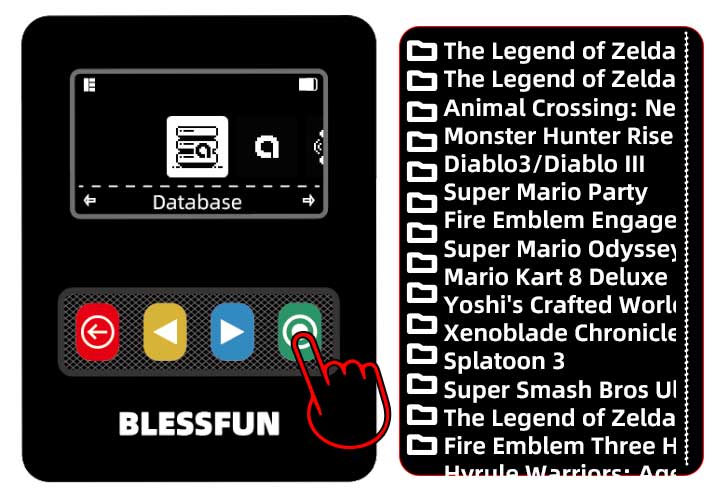
In the NFC Emulator device, select: Database menu – Select the directory of the game – Select the data.


Visit: https://blessfun.com/database-list/ to see if there are any games of their own:

1. If there is, you can find the corresponding amiibo content in the Database menu of the device.
Notice: You can scan the QR code with your mobile phone to view the corresponding props, or visit the https://amiibo.life/games to find the corresponding NS/NS2 corresponding games and props pictures and descriptions.


2. If not, you need to search for the amiibo bin file you need on Google, and then upload it to the Emulator directory through https://u.blessfun.com to use.

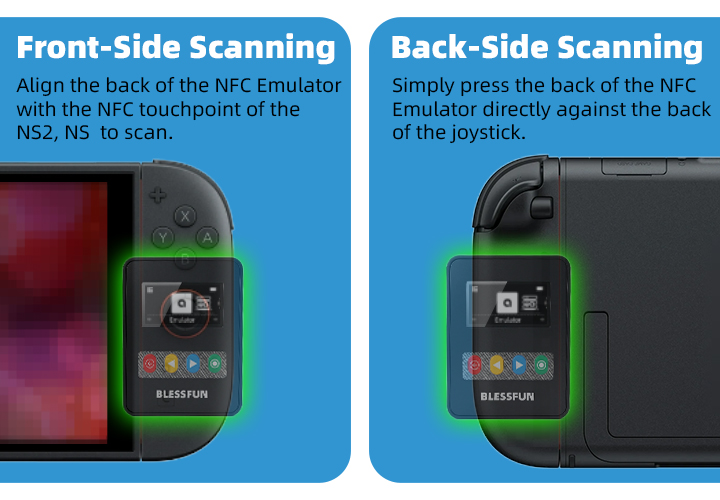
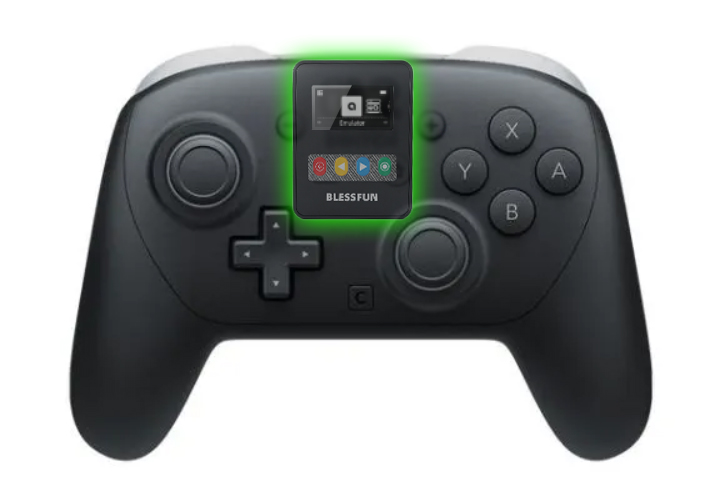
02 – Hold the device’s screen close to the right joycon stick of the NS/NS2 or the top logo of the Pro Controller.

Enter the game and place the NFC Emulator on the right Joycon stick of the NS / NS2, or the corresponding back, or near the top logo of the Pro Controller.

Back Scan:

Simply hold the device against the back of the controller. This allows for continuous scanning while you play, so you can collect items in real time—making gameplay more efficient and item farming faster.

PRODUCT BASIC FUNCTIONS

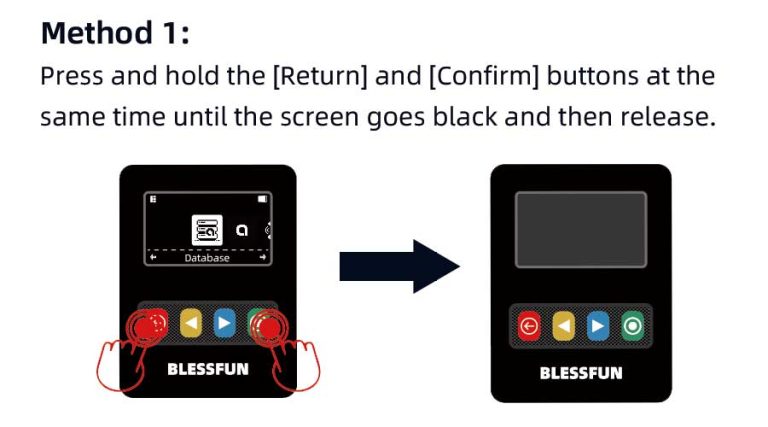
Method 1: Press and hold the [Return] and [Confirm] buttons at the same time until the screen goes black and then release.


Method 2: Use a magnetic object to move near the center of the back of the device. After the screen goes black, remove the magnet, and the device will automatically restart.

Charging:
Do not exceed 5V / 1A, otherwise it may damage the device. It is recommended to use a computer’s USB port for charging.

Auto-sleep:
The device will automatically sleep when not in use.
Hold down the 【Return】 key for 2 seconds to force the device to enter sleep mode.

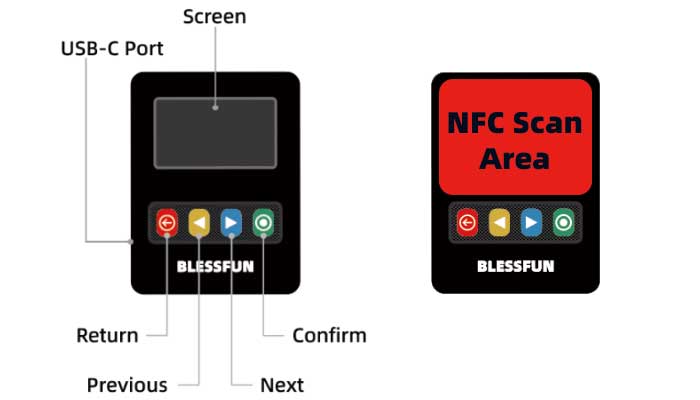
【Return】Button:
Short press: Return, exit.
Long press: 2 seconds to sleep.

【Previous】,【Next】Button:
Short press: Move between menus, file directories, settings.
Long press: Move automatically.

【Confirm】 Button:
Short press: Confirm, or enter the next level menu, table of contents.
Long press: Go to deeper settings.


NFC Scan Area:
The NFC scanning location is the device screen and its vicinity.

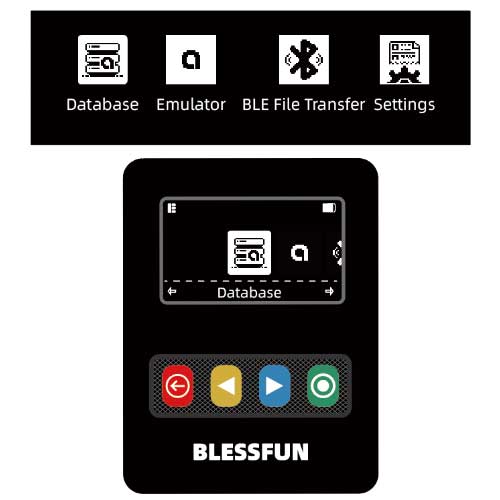
SYSTEM INTRODUCTION

Emulator:
The NFC bin file you uploaded via our webpage: https://u.blessfun.com.

Database:
NFC data that comes with the system.

BLE File Transfer:
Enter Bluetooth mode to upload data or upgrade. Keep the device displayed while connecting and uploading files, and do not enter auto-sleep.

Settings:
System-related settings. such as auto-sleep function, language, reboot, reset default setting and so on.